In this post
- The short answer
- Design rules Microsoft gives you
- A starting taxonomy for a 25 to 200 person firm
- Map labels to matter types
- Who applies labels
- Put defaults where matter work lives
- Encryption: where it earns the friction
- What labels do not cover
- A rollout order that avoids relabeling twice
- Quick answers
- Where this leaves your firm
1. Purview sensitivity labels for law firms: the short answer
Most firms end up in one of two places with Microsoft Purview sensitivity labels. They keep the default set, which knows nothing about clients and matters, or they build fifteen labels that nobody applies. Neither gives Copilot much to respect.
A law firm needs a short label set built around client and matter obligations, published to the right groups, with defaults set where matter work lives. Labels limit Copilot only when they are applied and enforced, and a sprawling taxonomy guarantees they will not be.
This post is the design piece. For how Copilot behaves once labels exist, see how Copilot handles labeled and encrypted files and Purview DLP for Copilot.
2. Design rules Microsoft gives you
Microsoft’s documentation sets the constraints. Treat these as design inputs.
Priority is positional. On the Labels page the order is the priority, with the least restrictive label first and the most restrictive last. Priority drives the justification prompt when a user lowers a label, and it settles auto-labeling conflicts.
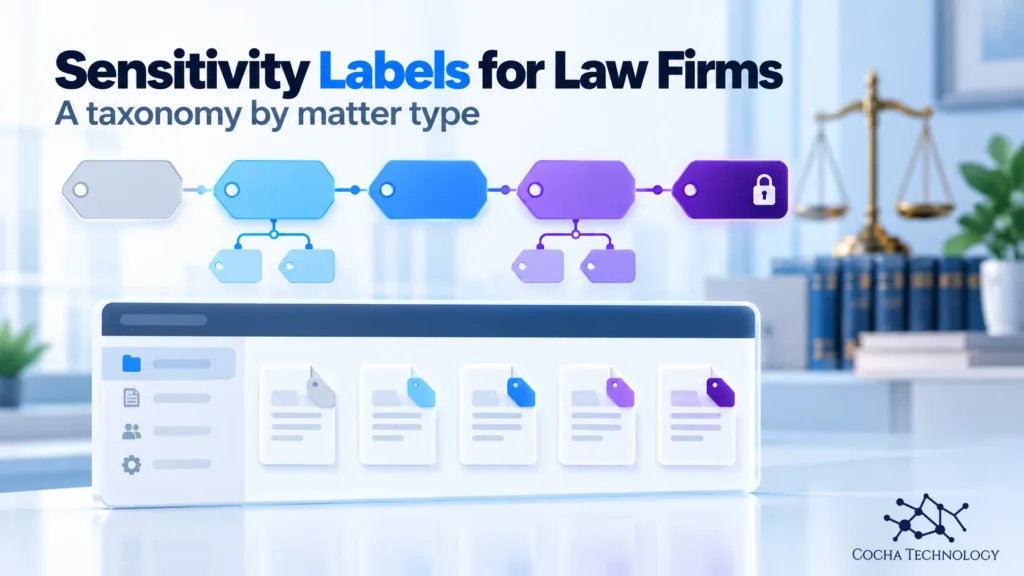
Microsoft’s guidance is that effectiveness is noticeably reduced when users have more than five main labels or more than five sublabels per main label. Some applications also cannot display every label when too many are published. For names, Microsoft suggests starting with common terms such as Personal, Public, General, Confidential and Highly Confidential, with sublabels to group similar labels.
Sublabels inherit nothing from the parent except color. A parent label that has sublabels cannot be applied to content by itself, and Microsoft warns against configuring the parent as a default. Microsoft is also replacing parent labels with label groups, which carry only a name, description, color and priority. You publish the labels inside a group, not the group itself.
Labels reach people through label policies. A policy publishes labels to specific users or groups and carries the settings for default labels, mandatory labeling and justification. When two policies disagree on a setting, the one with the highest order number wins. After you publish a label policy, Microsoft asks you to allow up to 24 hours for the changes to replicate.
Use the E3, E5 and E7 plan comparison to frame the licensing questions before choosing label controls.
3. A starting taxonomy for a 25 to 200 person firm
The table below is Cocha’s starting proposal. It is not Microsoft guidance. Rename it to fit your clients’ outside counsel guidelines, and remember that every added label has to be applied by a human or by a rule.
| Label | Sublabel | Encryption | Who applies | Default location |
|---|---|---|---|---|
| Public | None | No | Anyone | Marketing library |
| General | None | No | Anyone | Firm templates and admin |
| Firm Confidential | None | Yes, firm staff | Anyone | HR, finance, management sites |
| Client Confidential | Standard matter | Optional | Matter team | Default for new matter libraries |
| Client Confidential | Restricted matter team | Yes, named group | Matter team lead | Restricted matter libraries |
| Highly Confidential | Regulated data | Yes | Matter team lead | Libraries holding regulated records |
| Highly Confidential | Deal or investigation team only | Yes, named group | Matter team lead | Deal and investigation sites |
That is five main labels and four sublabels in total, inside Microsoft’s guidance. Notice what the proposal avoids. There is no label for each client and no label for each matter.
Be careful with names that include the word privileged. Microsoft describes sensitivity labels as a way to classify and protect your organization’s data. Its sensitivity labels overview does not describe labels as creating or preserving privilege, so a label called Privileged invites people to assume a legal status that Microsoft does not claim for it. Cocha is not giving legal advice, and your counsel should review any label name that implies a legal status.
4. Map labels to matter types
The mapping below tells matter teams which label to expect by default and when to step up. It is a starting point for your practice group leaders to revise.
| Matter type | Default label | Step up when |
|---|---|---|
| Litigation | Client Confidential, Standard matter | A protective order or sealing applies, or a restricted team is named |
| Transactional and M&A | Client Confidential, Restricted matter team | A defined deal team only should see it |
| Employment | Client Confidential, Standard matter | Personnel or health records are involved |
| Regulatory and investigations | Client Confidential, Restricted matter team | An internal investigation is under way |
| Estate and family | Client Confidential, Standard matter | Financial account data is involved |
The step up column matters because it keeps the default honest. A default that is too restrictive trains people to downgrade. A default that is too loose leaves sensitive matter files with a label that does nothing.
5. Who applies labels
Three label policy settings decide how much work falls on users.
A default label applies to unlabeled items. A mandatory labeling setting blocks save, send or creation until the user picks a label. A justification setting asks users to explain a downgrade. Cocha’s recommendation is to pair mandatory labeling with a sensible default and some training, because a forced choice with neither invites careless labels.
For a law firm, a workable pattern is a firmwide policy with a safe default and justification on downgrade, plus a higher priority policy for restricted matter groups. Publish the restricted labels only to the groups that need them. A lawyer who never sees Deal or investigation team only cannot apply it by accident.
Remember the conflict rule from section 2. If your firmwide policy and your group policy disagree on the default label, the higher order number wins, so check who is in both.
6. Put defaults where matter work lives
Container labels apply to sites, Teams and Microsoft 365 groups. They control things such as privacy, external sharing and access from unmanaged devices. Microsoft states that a container label does not label the items in the container. It controls access to the container, not the files inside.
SharePoint sensitivity labels work at two levels, the site and the document. Documents need their own labels, and that is where SharePoint’s default label per document library helps. Microsoft’s guide to library default labels says new files uploaded to the library, and existing files edited there, get the label if they have none or have a lower priority one. A label a user applied manually is never overridden. Set it on the matter library when the site is created, so every new document arrives labeled.
Do this for new matter sites first. Backfilling labels on years of existing matters is a separate project, and it is easier once the pattern is working on new work. Pair it with finding and fixing SharePoint oversharing, because a perfect label on a document that the whole firm can open still protects little. Data security posture management is how you spot unlabeled and overshared files across the tenant.
7. Encryption: where it earns the friction
Encryption is what turns a label from a marker into a control. It is also what generates support calls. Use it where the risk justifies it: restricted matter teams, regulated records, and deal or investigation teams.
Microsoft documents that when encryption is applied, the user must have both EXTRACT and VIEW usage rights for Copilot to interact with the content. User defined label permissions can block Copilot from extracting it. The mechanics are covered in the Copilot Premium page, and this post will not repeat them. Also enable sensitivity labels for SharePoint and OneDrive before you rely on library defaults.
8. What labels do not cover
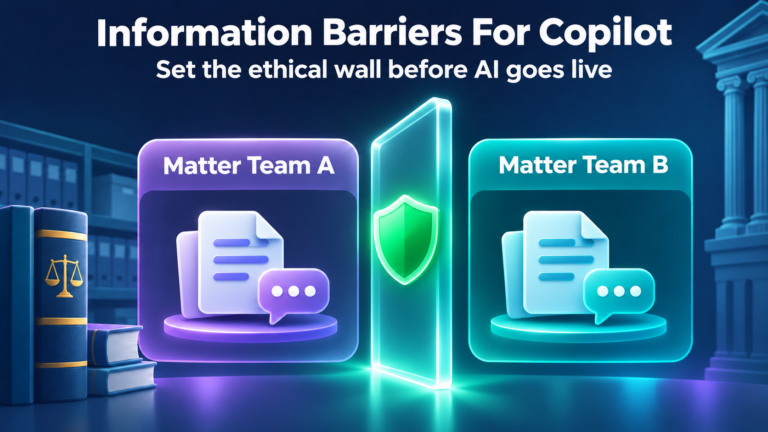
Labels are not ethical walls. Microsoft describes labels as a way to classify and protect data. Separating people is a different Purview feature: Information Barriers restricts two-way communication and collaboration between groups and users in Teams, SharePoint and OneDrive. Microsoft’s own example is a law firm where a lawyer’s data from one client can’t be accessed by a lawyer at the same firm who represents a different client. Microsoft also says Information Barriers policies can’t restrict communication in email, including Exchange Online, so a wall needs other controls there. How a wall is designed is a decision for your counsel and conflicts team. The Premium page covers the information barriers side.
Compare labels with Information Barriers for law firm IT when reviewing access between matter teams.
Labels do not reach every AI app. Microsoft’s capability table for the Claude Enterprise connector lists sensitivity labels as not supported, so a label you apply in Microsoft 365 does not govern what happens inside Claude. The same goes for any AI tool outside Microsoft’s own services.
Labels also do not cover systems you have not integrated. This post makes no claim about how labels interact with iManage or other document management systems. If your firm runs one, test it with a sample matter before you assume a label carries over.
9. A rollout order that avoids relabeling twice
- Draft the taxonomy with the records manager and two or three practice group leaders.
- Pilot with one practice group and publish the policy only to that group.
- Set the library default label on new matter sites first.
- Measure coverage, then fix gaps. DSPM for AI shows how labeled and unlabeled content shows up in AI activity.
- Backfill existing matters after the pattern is stable.
- When a matter closes, decide whether the label changes, who can still open the files, and what applies to retained copies.
- Review the taxonomy against your largest clients’ outside counsel guidelines once a year.
The Copilot readiness work for law firms is the wider context for all of this.
10. Quick answers
How many sensitivity labels should a law firm have?
Microsoft’s practical guidance is no more than five main labels and no more than five sublabels per label. The proposal above fits within that.
Should every matter get its own sensitivity label?
No. Per-matter labels multiply quickly and are hard to maintain. Use restricted sublabels with group based access for the few matters that need a named team.
Can a sensitivity label mark a document as privileged?
Not by itself. A label can mark and protect a document, but Microsoft’s sensitivity labels overview does not describe labels as creating or preserving privilege. Ask counsel before using privilege language in a label name.
Can sensitivity labels be applied automatically?
Yes. Microsoft supports auto-labeling, and label priority settles conflicts when several rules match. Test it on a pilot matter first, because a wrong automatic label is harder to spot than a missing one.
Do container labels on a SharePoint site label the documents inside?
No. Microsoft states that a container label does not label the items in it. Set a default label on the document library as well.
Do sensitivity labels stop Copilot from using a document?
Labels that apply encryption can, because Copilot needs the user to hold EXTRACT and VIEW usage rights. A label without encryption is a marker. See the Premium page for the details.
Do Purview sensitivity labels apply to Claude?
Microsoft’s capability table for the Claude Enterprise connector lists sensitivity labels as not supported.
11. Where this leaves your firm
Start with five main labels and write down who applies each one. Put the default on the matter library. Publish restricted labels only to the people who need them. Then measure coverage before you add anything.
If you want to see how your tenant looks before Copilot reads it, the AI Readiness Snapshot is the place to start.
This isn’t legal advice. Label names and any privilege or ethical wall wording belong with your firm’s counsel.
Primary sources
- Microsoft Learn, Learn about sensitivity labels
- Microsoft Learn, Configure a default sensitivity label for a SharePoint document library
- Microsoft Learn, Secure by default with Microsoft Purview, step 1: start with default labeling
- Microsoft Learn, Microsoft Copilot data protection architecture
- Microsoft Learn, Learn about Information Barriers
- Microsoft Learn, Microsoft Purview for Anthropic Claude Enterprise