Information Barriers are the Microsoft Purview control most law firms point to when someone asks whether an ethical wall will hold once Copilot is on. That is a reasonable place to start. It is also easy to give the feature more credit than the documentation supports.
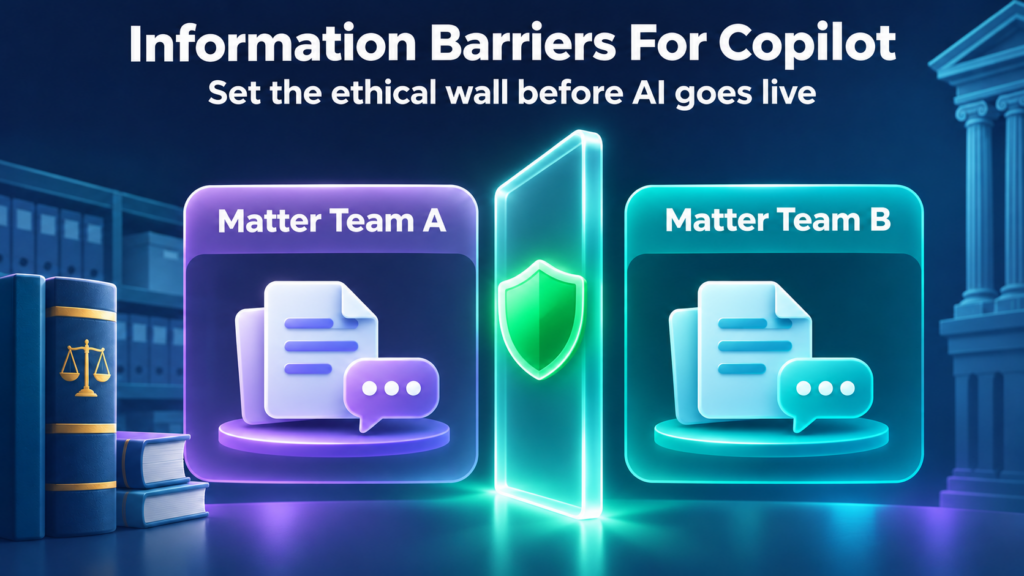
Information Barriers restrict communication and collaboration in Teams, SharePoint, and OneDrive. They do not restrict email in Exchange Online. Copilot follows the signed-in user’s existing permissions. It does not add a second wall of its own.
The useful question is whether the wall is built from settings that block access in every place Copilot can read from. The sections below cover what Information Barriers do, where they stop, and the IT checks we’d run before assigning Copilot seats.
What Information Barriers are in Microsoft Purview
Microsoft describes Information Barriers as a compliance solution that restricts two-way communication and collaboration between groups and users in Microsoft Teams, SharePoint, and OneDrive. One of Microsoft’s own examples is a lawyer’s data from one client staying out of reach of a lawyer at the same firm who represents a different client.
The model has three parts. Segments are groups of users, defined by directory attributes such as department or group membership. Policies say which segments cannot communicate with each other, or which segments can communicate only with certain others. Then you apply the policies, and the service starts enforcing them.
Microsoft gives you two policy shapes. A block policy stops one segment from communicating with another. An allow policy lets a segment communicate only with the segments you name. Each policy is directional, so a two-way wall needs a policy in each direction.
Two details matter for law firms. First, Information Barriers support two-way restrictions only. Microsoft says a design where one side can reach the other, and the reverse path stays open, is not supported. Second, segment quality depends on your directory data. Microsoft’s setup guidance says user attributes in Microsoft Entra ID or Exchange Online need to be populated correctly before you define segments.
If matter or practice-group data lives in the billing or matter system and never reaches the directory, the segments will be wrong from day one. That last point is our reading of the directory prerequisite, not a Microsoft warning about any specific matter system.
Limits depend on the tenant’s Information Barriers mode. Outside legacy mode, Microsoft allows up to 5,000 segments and as many as 10 segments per user. Legacy mode caps that at 250 segments and one segment per user. Microsoft also supports only Microsoft 365 Groups here. Distribution lists and security groups are treated as non-IB groups. Before the first policy, Microsoft requires scoped directory search in Teams and a 24-hour wait after you enable that setting.
What Information Barriers control
Microsoft lists the supported scenarios by workload.
In Teams, Information Barriers can block searching for a user, adding a member, starting a chat or group chat, and inviting someone to a meeting. They can also block screen sharing, placing a call, sharing a file, and accessing a file through a sharing link. When two users are blocked, they cannot find, select, chat, or call each other. The Purview service description adds that Information Barrier policies also prevent lookups and discovery. A blocked user does not appear in the people picker.
That people-picker restriction is on by default. In tenants that are not in legacy mode, an administrator can turn it off. If it is off, a blocked user might still be discoverable even when communication is supposed to fail.
In SharePoint and OneDrive, the policies can block adding a member, accessing a site or its content, sharing a site or content, and searching a site. SharePoint applies this through site modes.
A site with no segments is Open, which is the default. Anyone who already has ordinary site permission can be invited, subject to that person’s own Information Barriers policy. When you attach a segment to a site, the mode becomes Explicit. In Explicit mode the Anyone link and company-wide link options are disabled. You can share only with users whose segment matches the site. A user needs both a matching segment and ordinary access permission to get in. Users with no segment cannot access a site that has segments attached.
You also cannot attach incompatible segments to the same Explicit site. If two groups are blocked from each other, SharePoint will not let both segments sit on one site.
Teams-connected sites move to Implicit mode after Information Barriers is enabled for SharePoint, usually within 24 hours. Anyone and company-wide links are disabled there too, and access follows membership in the connected Microsoft 365 group.
Owner Moderated mode lets a site owner invite users from incompatible segments so they can work in one place under the owner’s control. Anyone and company-wide links are disabled there as well. In our view, that mode deserves a review in a law firm, because the owner becomes the exception path.
Timing is easy to underestimate. Microsoft asks you to wait 24 hours after configuring and activating Information Barrier policies for the changes to propagate, before you enable the SharePoint side. After that SharePoint switch is turned on, Microsoft says to wait about an hour. Policy application itself starts in about 30 minutes and then processes user accounts over time.
What Information Barriers do not control
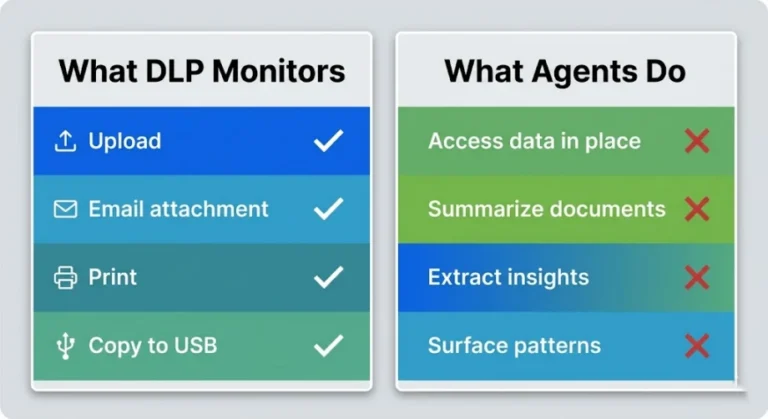
Start with email. Information Barriers do not restrict email communication in Exchange Online. Microsoft says so plainly and points to Exchange mail flow rules for anyone who needs to control email. In a law firm that is a large carve-out, because a lot of matter traffic is still email.
There is a related setup warning. In legacy mode, Information Barriers relies on Exchange address book policies. Microsoft warns that enabling Information Barriers in environments without configured address book policies can cause a loss of address list visibility between all users. Newer single-segment and multi-segment modes no longer rely on address book policies. Confirm which mode your tenant is in before you change anything.
A few other documented limits are worth knowing.
Planner support covers basic plans only, in Planner on the web and in Teams. When a policy changes, users keep access to plans already shared with them and to tasks already assigned. The check applies to later sharing and assignment.
Agent Builder is a Copilot-adjacent gap. Microsoft says Information Barriers isn’t supported on files embedded in an agent. Any user who can access the agent can see responses grounded in that file content. If anyone at the firm is building agents, that is a path around the wall that does not depend on permissions on the original file.
How Copilot behaves around Information Barriers
Microsoft states that Copilot presents only data each individual can access, using the same underlying controls as other Microsoft 365 services. The semantic index honors the user’s identity-based access boundary. Copilot can ground responses in organizational data such as documents, emails, calendar items, chats, meetings, and contacts the user is already allowed to open. When a file is encrypted by Microsoft Purview Information Protection, Copilot honors the usage rights granted to that user.
Put those facts next to the Information Barriers scope and the picture is clearer. Copilot does not grant new access. It also does not create a second ethical wall. If Information Barriers keeps a user out of a segmented SharePoint site or a Teams conversation, that user’s Copilot generally has nothing there to ground on.
Microsoft documents one important exception after a policy change. On Implicit and Owner Moderated sites, a user who already had access can still see the site and its contents in search and Copilot results. When they try to open the content, they are denied if they no longer comply with the site’s Information Barriers policy. That stale-result behavior is why a matter boundary is a test requirement, not a setting you assume. A Copilot citation is not the same thing as successful access. Ask the blocked user to open the file, not only whether the assistant mentioned it.
If the user can open something through a path Information Barriers does not cover, Copilot can use it. Email is the clearest example. A lawyer who can open a mailbox or a shared mailbox holding the other side of a walled matter can have Copilot summarize it. Delegate access works the same way. It is a permission path, so Copilot can follow it even when those two people cannot chat in Teams.
We did not find a Microsoft Learn page that says Information Barriers is enforced across every Copilot data path. The Microsoft 365 Copilot Retrieval API overview mentions respecting information barriers in a developer scenario. That describes the API, not a blanket guarantee for every end-user Copilot prompt. We would not write that guarantee into a firm policy.
Ethical walls, permissions, sensitivity labels, and DLP
These controls get lumped together under the heading ethical wall. They do different jobs, and Copilot interacts with each one differently.
| Layer | What it does as an IT setting | Where it stops |
|---|---|---|
| Information Barriers | Blocks communication and collaboration between defined segments in Teams, SharePoint, and OneDrive | Does not restrict email; two-way restrictions only; depends on clean segment data |
| Site and file permissions | Decide who can open a given site, library, or file. This is the access boundary Copilot follows | Only as tight as the groups, links, and inheritance behind them |
| Sensitivity labels with encryption | Protect a file and its usage rights wherever it travels. Copilot honors the usage rights granted to the user | Only protects what is labeled and encrypted |
| Purview DLP | Policy rules on sensitive content. DLP can stop Copilot from processing labeled files and emails, though those items can still appear in citations. Blocking sensitive information types inside prompts is in preview | Confirm current preview status and licensing before you rely on it. DLP does not scan files uploaded directly into a prompt |
Microsoft’s DLP guidance for Copilot adds a few boundaries. Labeled items excluded from processing can still appear in citations. That email coverage applies to emails sent on or after January 1, 2025, and calendar invites are not supported. Prompt blocking for sensitive information types is in preview. DLP cannot scan a file uploaded directly into a prompt.
For more detail on each layer, see our guides on DLP and Copilot, sensitivity labels for law firms, and SharePoint oversharing.
Here is the practical reading. Permissions are the control Copilot obeys. Information Barriers is the control that keeps segments from being granted access to each other in the first place. Labels and DLP are backstops. Take the permissions layer out of that chain and the rest has little to work with.
IT checks before you enable Copilot seats
This is the list we’d work through. It is ordered so that each step makes the next one meaningful.
- Build the segments from the matter system, not from guesses. Decide which attribute represents a conflicted group, make sure it is populated in Entra ID, and keep a record of who owns it going forward. Stale attributes mean a stale wall.
- Inventory SharePoint sites and Teams by owner and mode. Which sites are Open, which are Explicit, which are Implicit, and which are Owner Moderated? A matter site with no owner and no segment is a finding. Our Copilot readiness page covers the broader review.
- Clean up oversharing before you assign more seats. Anyone links, company-wide links, broad group membership, and inherited permissions all feed Copilot. Information Barriers does not repair them on sites it has not been attached to.
- Close the email gap deliberately. Information Barriers will not do it. Decide whether Exchange mail flow rules, a mailbox permissions review, or another control covers walled matters, and write down who owns that decision.
- Check shared mailboxes, delegates, and any agents or embedded files. Delegate access is a permission path, not an Information Barriers path. Embedded agent files fall outside Information Barriers, per Microsoft. Ask whether any app-only bypass is enabled for SharePoint.
- Confirm the tenant mode and the people-picker setting. Legacy mode changes address book behavior, hidden-user enforcement, and segment limits. If people-picker search restriction is disabled, discovery tests will not match communication tests.
- Test a blocked pair in each workload. Take two users in incompatible segments. Try to find, chat, call, share a file, and open a site in Teams, SharePoint, and OneDrive. Then ask each user’s Copilot about the other side’s matter, and read the output. Also check whether old search or Copilot results still appear after a policy change. Wait the 24 hours Microsoft cites after activating policies before you treat a test as final.
- Log the results. Date, tester, workload, expected result, observed result. If the wall is ever questioned, a dated test log is the first thing anyone will want to see.
If you want a second set of eyes on the site inventory and oversharing cleanup, that is the work the AI Readiness Snapshot is built around.
Closing
Information Barriers do a specific job well. They keep defined groups from chatting, calling, sharing, or entering each other’s sites in Teams, SharePoint, and OneDrive. They do not cover email, and Copilot does not enforce a separate wall of its own. It follows access.
If the permissions underneath your matters are clean and the segments are current, the barrier and Copilot line up. If they are not, Copilot just makes the existing gaps quicker to find.
If you’d like to see where your own environment stands, the AI Readiness Snapshot is free, takes about 60 minutes, makes no changes to your environment, installs no software, and ends with a findings report.
FAQ
What do Information Barriers control in Microsoft 365?
They restrict two-way communication and collaboration between defined segments in Teams, SharePoint, and OneDrive. That covers chat, calls, meetings, file sharing, and site access. They do not restrict email in Exchange Online, and Microsoft points to mail flow rules for that.
Do Information Barriers stop Copilot from showing a file?
Not by themselves. Copilot shows what the signed-in user can already access. If Information Barriers blocks that user from a segmented site, Copilot generally has no access there either. If the file is reachable another way, such as email or an overshared link, Copilot can still surface it.
Which license tier is required?
Microsoft’s Purview service description says users in the segments assigned to a policy need licenses. The live page does not name the qualifying plans in that section. Confirm the current tier in the Purview service description before you quote one to finance.
How do ethical walls relate to permissions and labels?
Permissions decide who can open content, and Copilot follows them. Information Barriers keeps defined segments from collaborating or being granted access to each other in supported workloads. Sensitivity labels add usage rights and encryption on specific files. They work as layers, and none replaces the others.
Where should IT start before enabling Copilot seats?
Start with segment data and SharePoint oversharing. Confirm the directory attributes behind your segments, find open or ownerless matter sites, and fix broad links. Then test a blocked user pair in each workload, including Copilot, and keep a dated log of the results.