Agent Builder or Copilot Studio: what law firm IT is deciding
Microsoft Copilot Studio is where a law firm’s IT-owned agents belong, the ones with actions, connectors and workflows. Copilot Agent Builder is the simpler part of Microsoft 365 Copilot, where a licensed employee describes an agent, points it at some knowledge and clicks Create. Nobody opens a ticket. Microsoft describes it as an easy way to build declarative agents for Microsoft 365. You pick the knowledge sources, such as SharePoint content and Copilot connectors, and test the agent before anyone uses or shares it (Microsoft Learn, Agent Builder overview, updated October 27, 2026).
The short version of Copilot Agent Builder vs Copilot Studio: Agent Builder is the simple option, and Copilot Studio builds agents with greater functionality (Microsoft’s agents admin guide, updated August 18, 2026). Environments, connector policies and publishing belong to Copilot Studio, and our Copilot Studio governance guide covers them, so this article leaves them alone.
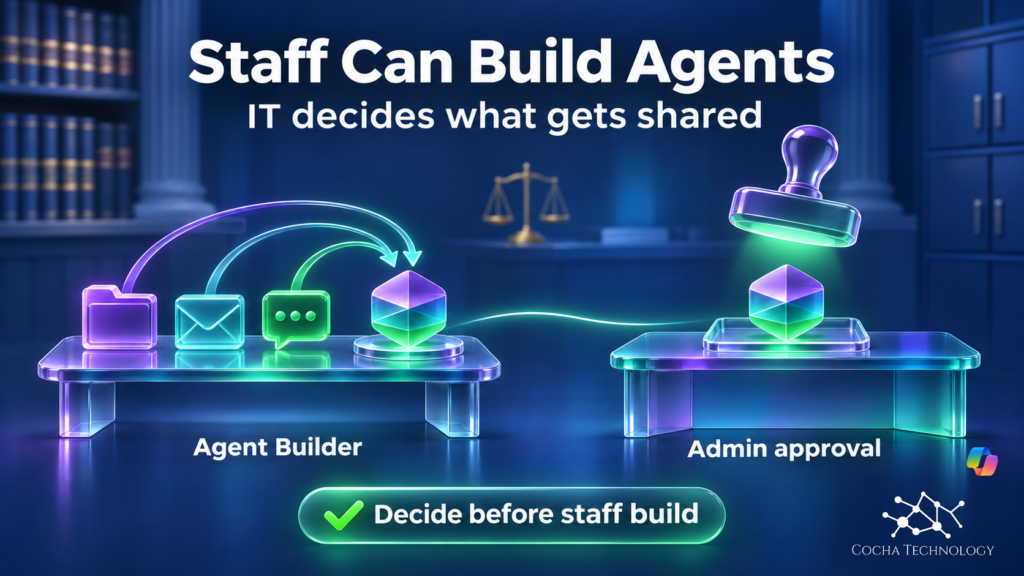
Here is the part that matters for a law firm. Any employee with the right license can build an agent and share it, unless IT decides otherwise. Microsoft’s sharing documentation lists the admin setting for who may share agents as All users by default (updated November 6, 2026). So the decisions below come before staff build agents on matter folders, not after.
Know what your staff's agents can already see
Anyone with Copilot can build and share an agent, and sharing is open to all users by default. The free AI Readiness Snapshot reviews your permissions in a 60-minute working session. Request it with your name, work email and firm.
Control 1: Decide whether Agent Builder is on, and for whom
Microsoft says administrators can control whether Agent Builder is available to users in their organization. Access depends on the licenses assigned in your tenant. The agents admin guide says Agent Builder comes with a Microsoft 365 Copilot license, or with pay as you go enabled for Copilot Studio.
Two admin center settings sit next to that control. User access controls who can use agents and plugins, with All users as the default, No users, or specific users or groups. Agent and plugin access controls which categories show up in the agent catalog. The categories are agents built by Microsoft, by your organization or by external publishers (Microsoft Learn, Agent settings in the Microsoft 365 admin center, updated October 23, 2026).
The Microsoft Agent Builder documentation lists it as reachable from microsoft365.com/chat, office.com/chat and the Teams desktop and web client, on the Work and Web options of the toolbar, and not on mobile. Expect curious staff to find the Agent Builder Copilot option on their own. Ask one practical question first: who at the firm has a Copilot license today, and did the firm decide that deliberately? If you’re still sorting out the wider access gate, our Copilot Chat Basic admin guide covers it.
Control 2: Set who can share an agent
Building an agent is private until the builder shares it. Sharing is where the exposure starts. Microsoft documents three admin options in the Microsoft 365 admin center: All users (the default), Specific users or groups, and No users.
Read the No users option closely. The sharing documentation describes it as disabling org-wide sharing, and the admin center page adds that users can still share directly with specific individuals. It limits broad sharing. It doesn’t stop a builder from handing an agent to a colleague.
Three more details are worth knowing before you change anything:
- Changes apply only to new sharing actions. Agents already shared stay accessible until someone updates their sharing settings.
- Sharing gives direct access to a specified set of users. It doesn’t deploy an agent across the organization. If sharing is restricted, an admin has to approve and deploy the agent before others can use it.
- There are two roles, Can edit and Can chat. Anyone with Can edit is an owner with full rights. A group can only be a chat user, so ownership always sits with named individuals.
When a builder turns on org-wide sharing for chat, other users in the tenant can see the agent in the Agent Store. Microsoft says the sharing control applies only to agents built with Agent Builder.
Control 3: Check what an agent can be grounded on
An agent is only as sensitive as what it can read. Agent Builder supports public website URLs, SharePoint and OneDrive content, Teams chats and meetings, Outlook email, files uploaded from a device and Microsoft 365 Copilot connectors. Connectors need your administrator to enable them. Microsoft lists per agent limits, including four public URLs and 100 SharePoint files (Microsoft Learn, Add knowledge sources to an agent in Agent Builder, September 30, 2026).
Microsoft says the agent respects existing permissions and sensitivity labels on SharePoint and OneDrive content. That’s reassuring and also the catch. Agent Builder doesn’t repair oversharing. If a site is open to far too many people, an agent grounded on it inherits that reach, which is why our SharePoint oversharing guide comes before any agent policy.
Two other behaviors deserve a line in your policy.
First, sharing can move file permissions. Microsoft documents that an owner can have the agent share the SharePoint files and folders it uses with the people they add, when the owner already has permission to share them. Microsoft’s known limitations say that automatic sharing works only for specific security groups and not for everyone in the organization.
Second, files uploaded from a device are stored by Copilot in tenant-owned SharePoint Embedded containers. Microsoft’s agent details page warns that Purview Information Barriers isn’t supported on embedded files, and that anyone who can access the agent can see responses grounded in that content (October 23, 2026). If your firm separates matter teams with ethical walls, that line is worth reading twice.
Two settings can also override what the builder sees. If Restricted SharePoint Search is enabled, SharePoint can’t be used as a knowledge source. If your admins disable web content through the Allow web search in Copilot policy, that policy takes precedence over the Web content toggle in the builder, even though the toggle still appears.
Ask matter teams a plain question: which folders would you point an agent at?
Agents inherit what each person can already open
Oversharing travels with an agent. The free Snapshot reviews Microsoft 365 permissions and sharing, then closes with written findings and a 30-minute review.
Control 4: Draw the line between Agent Builder and Copilot Studio agents
Microsoft’s zoned governance guidance for Copilot Studio puts Agent Builder in Zone 1, the citizen development zone, along with SharePoint agents. The zone is for personal and team productivity agents built on content the maker can already access, with read-only permissions and private agents. Its governance language calls for sharing to be disabled and scoped to the maker (Microsoft Learn, Implement a zoned governance strategy, updated January 20, 2026).
That is Microsoft’s recommended pattern. It is not a tenant default. The default, as Control 2 showed, lets all users share. If you like the Zone 1 idea, you have to build it with the settings above.
Anything that needs more than that moves to Copilot Studio under IT. Agent Builder doesn’t support authoring actions that integrate external services, and Microsoft says to copy the agent to Copilot Studio to add low code actions, connectors or workflows. Publishing across channels also happens in Copilot Studio. Write the dividing line down in plain terms: personal and team helpers stay in Agent Builder, and anything with connectors, wider sharing or an approval process goes through IT. Our Copilot Studio governance guide covers that second tier.
Control 5: Find the shared agents and give each one an owner
You can’t govern agents you can’t list. Microsoft says agents shared by their creators, including those built with Agent Builder, appear in the Agent Registry in the Microsoft 365 admin center. The registry shows name, creator, creation date, host products and availability. Admins can search it and block agents that are unsafe or noncompliant (Microsoft Learn, Manage agents in the Microsoft 365 admin center, updated October 23, 2026).
To block one, go to Agents, then All agents, select the agent and choose Block. Blocking an agent built in Agent Builder or Copilot Studio affects its availability in Copilot and in other host products such as Outlook and Teams. Microsoft also says blocking removes the agent from members who already installed it.
Ownership is the quieter problem. Microsoft says an agent becomes ownerless when its original creator leaves the organization. An agent management rule can reassign ownerless Agent Builder agents to the manager of the previous owner, based on the Microsoft Entra ID hierarchy. Another rule can block ownerless agents that have no usage. Microsoft doesn’t describe either rule as running on its own. An admin creates or runs the rule, and Microsoft says you review the affected agents before it runs. That review matters at a firm, because a manager listed in the directory may not be the partner who should own a matter team’s agent.
Our Microsoft Agent 365 guide covers the wider control plane for agents.
Control 6: Decide what you can see afterwards
Plan the evidence before you need it. Microsoft’s Purview audit documentation says Copilot interactions are recorded as CopilotInteraction events, and the records carry AgentId and AgentName properties (updated August 26, 2026). Microsoft’s own example shows a declarative agent created in Copilot Studio with an AgentId that begins CopilotStudio.Declarative. The page doesn’t show an equivalent value for Agent Builder agents, so we won’t guess at one.
Test it. Build a harmless sample agent, use it, then search your audit log and write down exactly what comes back. Do that before anyone tells a client or a partner that agent use is traceable.
The admin center also has a Security tab on the agent details pane, which points to Purview activity explorer, sensitive data and compliance gap information. Microsoft says seeing the Security tab and the Risks column in the registry requires a Microsoft E7 or Agent 365 license (October 23, 2026). If you don’t hold one, the audit test above matters more.
Whether agents carry their own identity is a separate question, covered in our Entra Agent ID guide. This article doesn’t claim either way for Agent Builder agents.
When Agent Builder becomes a Snapshot conversation
If you’ve just learned that sharing defaults to all users and that agents inherit what a person can open, an outside read is a reasonable next step. The free AI Readiness Snapshot looks at Microsoft 365 permissions and sharing, plus the Secure Score items that matter for Copilot and connected agents. It is a 60-minute working session followed by written findings and a 30-minute review, with no obligation to purchase. It’s read-only, makes no changes to your firm’s environment and installs no software. Your Microsoft 365 administrator runs a read-only exposure script beforehand, and we work through what agents can already reach. It isn’t a review of your Agent Builder settings.
Frequently asked questions
What is Copilot Agent Builder, and how is it different from Copilot Studio?
Copilot Agent Builder is the simple interface in Microsoft 365 Copilot for building declarative agents with chosen knowledge sources. Copilot Studio builds agents with greater functionality, including actions, connectors and workflows. In the Copilot Agent Builder vs Copilot Studio question, the first suits personal and team helpers, and the second is where IT-owned agents belong.
Can IT turn Agent Builder off or limit who can share agents?
Yes to both. Administrators can control whether Agent Builder is available. Sharing can be set to all users (the default), specific users or groups, or no users. Changes apply to new sharing actions only, and the No users option stops org-wide sharing while still letting people share directly with named individuals.
Can an Agent Builder agent read files a user cannot open?
Microsoft says the agent respects existing permissions and sensitivity labels on SharePoint and OneDrive content. The risk is the permissions already in place, because an agent grounded on an overshared site inherits that reach. Review SharePoint permissions before agent policy. See our SharePoint oversharing guide.
What happens to an agent when its creator leaves the firm?
Microsoft calls it an ownerless agent. An admin center rule can reassign ownerless Agent Builder agents to the previous owner’s manager, using the Microsoft Entra ID hierarchy. A separate rule can block ownerless agents that have no usage. Microsoft doesn’t describe either rule as automatic, and says you review the affected agents first.
How does IT see and block agents that staff have shared?
Agents, then All agents, lists shared agents with their creator, host products and availability, and an admin can block one. Blocking an Agent Builder agent affects its availability across host products such as Outlook and Teams. Audit records include agent fields, so test one sample agent and confirm what your search returns.
When is the free AI Readiness Snapshot the right next step?
When IT wants an outside read of Microsoft 365 permissions and Copilot exposure before more staff build agents. The Snapshot is free: a 60-minute working session followed by written findings and a 30-minute review, with no obligation to purchase. It’s read-only, makes no changes to your firm’s environment and installs no software.
Close
Copilot Agent Builder gives staff a fast way to build helpers, and it gives IT six decisions to make first: availability, sharing, grounding, tier, ownership and evidence. Settle them while agents are still few. If you’d like an outside read of permissions and Copilot exposure first, request your free AI Readiness Snapshot.
Sources
Read in full on Sun 11/15/2026. Dates are the “Last updated” line printed at the foot of each Learn page. Several pages carry a different ms.date or updated_at in their metadata, so the printed date is the one used in the copy.
- Agent Builder overview: Definition, admin availability control, license dependence, no external service actions, Allow web search policy precedence. Last updated October 27, 2026.
- Share and manage agents built in Agent Builder: Roles, admin sharing options with All users as the default, new-actions-only rule, approval when restricted, automatic sharing of SharePoint files. Last updated November 6, 2026.
- Add knowledge sources to an agent in Agent Builder: Knowledge source list, limits, permissions and labels, Restricted SharePoint Search. Last updated September 30, 2026.
- Agent settings in Microsoft 365 admin center: User access, Agent and plugin access, Sharing options, agent management rules for ownerless agents. Last updated October 23, 2026.
- Governance and lifecycle actions for agents: Agents, All agents, Block and what blocking affects. Last updated October 23, 2026.
- Agents admin guide for Microsoft 365: License or pay as you go requirement, Copilot Studio versus Agent Builder. Last updated August 18, 2026.
- Implement a zoned governance strategy: Zone 1 language. Last updated January 20, 2026.
- Audit logs for Copilot and AI applications: CopilotInteraction records, AgentId and AgentName. Last updated August 26, 2026.
- Agent details in the Microsoft 365 admin center: Security tab and license note, embedded files and Information Barriers, block behavior. Last updated October 23, 2026.
- Manage agents in the Microsoft 365 admin center: Agent Registry fields, blocking noncompliant agents. Last updated October 23, 2026.
- AI Readiness Snapshot: Cocha live page, Snapshot facts. Read November 15, 2026.