
Contents
- How to detect shadow AI: the short answer
- Where to look first, by industry
- Check 1: Cloud discovery for generative AI apps
- Check 2: Network, DNS and proxy logs
- Check 3: App consents in Entra
- Check 4: Browser extensions
- Check 5: AI features inside software you already pay for
- Check 6: Expense reports and corporate cards
- Check 7: A short anonymous survey
- What to do with what you find
- A monthly routine
- Where this leaves your firm
- Quick answers
1. How to detect shadow AI: the short answer
You can find most shadow AI in about a week with seven checks: cloud app discovery, network logs, app consents in Entra, browser extensions, AI features inside approved software, expense reports, and a short anonymous survey. No single check catches everything, and that’s fine. Together they give you a list, and a list is what you need before any policy or control makes sense. This post covers how to detect shadow AI in practice. It’s the hands on companion to our guide to shadow AI, which covers the bigger picture and the policy side.
Two cautions first. Some checks depend on Microsoft licensing you may or may not hold, and I’ve said where. And discovery isn’t a hunt for someone to blame. Most unapproved AI use comes from a person with a deadline and a free account, and how you treat the first findings decides whether the next survey gets honest answers.
2. Where to look first, by industry
How to detect shadow AI doesn’t change much by industry. The seven checks are the same everywhere. The order I’d run them in changes a little.
Law firms. Personal AI accounts used to tighten a draft, AI notetakers that join client calls, and browser extensions that read whatever is on screen in the document management system. I’d start with the survey and the extension inventory.
Oil and gas. Field photos, inspection notes and equipment readings dropped into consumer apps from a phone. Personal phones sit outside most logs, so the survey matters more here. Our post on shadow AI in oil and gas covers the operational side.
PE backed companies. Deal room material and board decks pasted into a public tool to get a quick summary. Each portfolio company may have picked different tools, so run the same seven checks at each one and the sponsor gets lists it can compare.
Medical device. Transcription and summarization apps used on notes that may touch complaint files, quality records or patient information. I’d lean on cloud discovery and the review of AI features inside approved software first.
3. Check 1: Cloud discovery for generative AI apps
Microsoft Defender for Cloud Apps compares your traffic logs against its app catalog. Microsoft says the catalog covers more than 31,000 cloud apps, each scored against more than 90 risk factors. It includes a Generative AI category, and Microsoft says it has added more than a thousand AI related apps to the catalog. Filter on that category and you see which AI apps people use, how many people use them, and a risk assessment for each.
There are two ways to feed it. A snapshot report is the quick start: you upload logs from your firewall or proxy by hand. Continuous reports collect logs automatically, through the Defender for Endpoint integration, a log collector, or a supported secure web gateway such as Zscaler. Microsoft says the endpoint route extends discovery beyond your office network, which matters for laptops that travel.
For the endpoint route, Microsoft lists these prerequisites: a Defender for Cloud Apps license, devices onboarded to Defender for Endpoint, and either Defender for Endpoint Plan 2 or Defender for Business, including the version that comes with Microsoft 365 Business Premium. Data can take up to two hours to appear after you turn the integration on, and Microsoft says discovery data refreshes four times a day.
One limit to know about. By default, Defender for Cloud Apps can’t discover apps that aren’t in its catalog, though you can add custom apps. A brand new AI tool may not show up yet.
Once an app appears, you can mark it sanctioned or unsanctioned. You can also build policies that keep looking, using criteria such as risk score or users per day. With the Defender for Endpoint integration, Microsoft says unsanctioning an app can block access to it on onboarded devices.
4. Check 2: Network, DNS and proxy logs
Your firewall, web proxy and DNS logs show which AI domains people reach and how often. They don’t show what anyone typed. They do show where to look.
Take the AI apps from check 1, add any you already know about, and search the last 30 days of logs for those domains. If you have a secure web gateway, its category reports may do much of this for you. If you have little filtering in place, DNS logs from your router or DNS provider can still give you a rough first count.
The blind spots are worth saying out loud. Personal phones on cellular data, home networks, and any device that never touches your network won’t appear. That’s why this check works best next to the survey.
5. Check 3: App consents in Entra
This one finds AI tools that have been given access to mail, files or calendars.
In the Microsoft Entra admin center, go to Entra ID, then Enterprise apps, then All applications. Open an app and select Permissions. The Admin consent tab shows what was granted for the whole organization. The User consent tab shows what individual people granted for themselves. Microsoft’s walkthrough covers the steps. Scan the list for anything that looks like a writing assistant, notetaker, meeting summarizer or chatbot, and read what each one can reach.
Microsoft says that by default users can consent to apps for permissions that don’t require administrator approval. A person can hand an AI notetaker access to their mailbox in a couple of clicks.
Two details trip people up. You can’t revoke user consent in the portal. Microsoft documents Microsoft Graph and PowerShell for that. And revoking a permission doesn’t stop the person from consenting again, so closing the door means changing how users consent. Microsoft recommends allowing user consent only for apps from verified publishers, and the admin consent workflow gives people a way to ask for something instead of working around you.
6. Check 4: Browser extensions
Extensions can read and change what’s on a page, which makes them a quiet route for AI tools. There are two jobs here: see what’s installed, then decide what’s allowed.
To see it, Microsoft Defender Vulnerability Management has a browser extensions inventory. It covers Windows devices and the Edge, Chrome and Firefox browsers. For each extension you can see the devices it’s on, who installed it, whether it’s turned on, the permissions it requests and a permission risk rating. Microsoft says you need Defender Vulnerability Management standalone, or the add on if you already hold Defender for Endpoint Plan 2. If you don’t have that, pull whatever extension report your browser management tool offers and ask your IT provider what else is available.
To control it, Microsoft Edge has policies for extensions. The install blocklist and allowlist work together, so you can block everything and then allow a short approved list. If you block an extension that’s already installed, Microsoft says it’s disabled and the user can’t re-enable it, but it isn’t removed.
7. Check 5: AI features inside software you already pay for
This is the tedious one, and it’s where I’d expect surprises. Make a list of every business application you pay for: document management, e signature, CRM, meeting and notetaking tools, accounting, quality systems, field service software. For each one, check three things. Has an AI feature been added? Is it on by default? What do the vendor’s data terms say about retention and training?
Don’t guess. Ask the vendor or look in the admin console. An AI summary that switched on inside a tool you’ve used for years is still AI you haven’t reviewed, and it can arrive with a software update instead of a purchase.
8. Check 6: Expense reports and corporate cards
Subscriptions bought on a company card or expensed show up here even when network logs miss them. Ask finance to search the last 90 days for AI product names, and for small recurring charges nobody can place. Small charges are easy to expense without a second look.
Personal cards won’t appear, so this check has a ceiling. Check 7 covers the rest.
9. Check 7: A short anonymous survey
I think this is the most useful check, and it costs the least. Four questions, two minutes, no names:
- Which AI tools do you use for work?
- What do you use them for?
- What kinds of information go into them: client or customer data, personal data, source code, deal material, none of those?
- What’s missing from the approved option, if there is one?
Say plainly that the survey is anonymous, and then keep that promise. If the first round gets punished, the second round gets silence. The fourth question is the one I’d never skip. It tells you what a sanctioned tool needs to do so the free one loses its pull.
10. What to do with what you find
Put every tool you’ve found in one table and make a call on each. Three outcomes cover most of it.
| Decision | When it fits | What you do |
|---|---|---|
| Sanction | The tool fits real work and its terms suit the data that goes into it | Bring it under admin control, use the business tier, add it to the approved list |
| Replace | People need the capability, but this tool or tier isn’t acceptable | Offer an approved option first, then retire the old one |
| Block | The terms fail your data rules, or there’s no business reason for it | Unsanction it, block it, and tell people why |
For the Microsoft 365 licensing and security controls that support managed AI adoption, see our Microsoft 365 licensing guide.
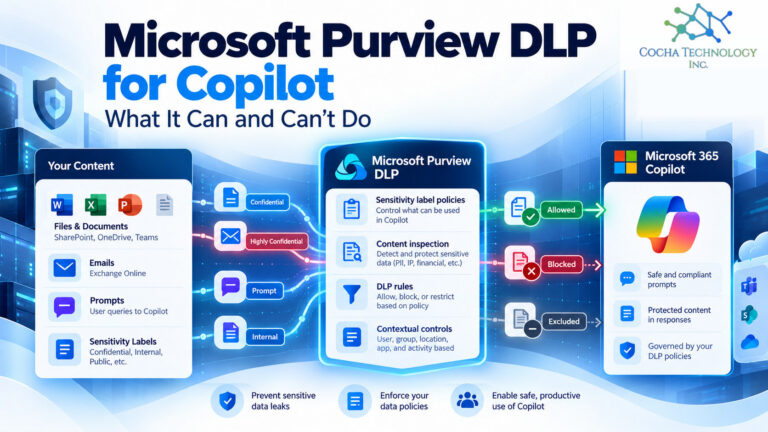
There’s a middle road for tools you tolerate but want guardrails on. Microsoft’s Purview documentation says data loss prevention can monitor and protect data going to ChatGPT, Google Gemini, DeepSeek and Microsoft Copilot through Edge for Business and network options. Licensing varies, so check what you hold before you plan around it. Our guide to shadow AI protection tools compares the control options in more detail.
Then write it down. The NIST AI Risk Management Framework is voluntary, and NIST published a Generative AI Profile in July 2024, so either works as a backbone if you want your policy to map to something recognized. Our free AI acceptable use policy template gives you a starting draft, with a law firm addendum.
11. A monthly routine
Shadow AI isn’t a one time cleanup, because new tools keep appearing. A short routine you run beats a big audit once a year.
- Pull the generative AI category report from cloud discovery and compare it to last month.
- Review new app consents in Entra.
- Check the extension inventory for new arrivals.
- Ask finance for new AI related charges.
- Re-run the survey every quarter, and tell people what changed because of it.
Keep a one page log: tool, date found, decision, owner. In six months it’s the best evidence you’ll have that governance is real.
12. Where this leaves your firm
If you’re working out how to detect shadow AI with limited time, start with what you can finish this week. The survey and the Entra consent review cost nothing but time, and they should tell you where to point the rest. Add cloud discovery next, then the extension inventory, and keep the monthly routine going.
When you have a list, the next job is deciding what people may use and writing it down. Our guide to shadow AI walks through the full response, from discovery to policy. If you’d like a structured look at where your Microsoft 365 environment stands before you roll out an approved assistant, the AI Readiness Snapshot is a good first step. It’s a starting point, not a remediation.
13. Quick answers
What tools detect shadow AI? Cloud app discovery in Defender for Cloud Apps, network and DNS logs, the app consent list in Entra, a browser extension inventory, a review of AI features in approved software, expense reports and a short survey. No single tool sees everything.
Can Microsoft Defender detect ChatGPT use? Defender for Cloud Apps can show that ChatGPT and other generative AI apps are in use, and by how many people, based on your traffic logs. It’s a usage view. Don’t expect it to show what someone typed.
How often should we scan for shadow AI? Review discovery data monthly. Microsoft refreshes the data four times a day, so the limit is your attention, not the tool. Run the survey quarterly.
Should we block the AI tools we find? Not by reflex. Block tools whose terms fail your data rules. Sanction or replace the rest, because blocking without an alternative mostly pushes use out of sight.
What is shadow AI? Any AI tool, feature or extension people use for work without the organization’s knowledge or approval, including AI features that switched on inside approved software.