On insider risk, Copilot is new ground. Microsoft Purview Insider Risk Management can score Copilot prompts and agent activity as risk signals. Turning it on is easy. Explaining it to a firm’s staff and partners afterward is not. Settle five things first: licensing, who sees alerts, which AI templates apply, how DLP feeds it, and what HR and counsel have agreed. This post reflects Microsoft Learn as read on November 15, 2026.
Insider risk for Copilot: the short answer
Insider Risk Management, or IRM, correlates activity into risk scores and alerts for a small group of analysts. It scores and alerts. It doesn’t block anything by itself.
For Copilot, two templates matter. Risky AI usage looks at prompts, responses and browsing to generative AI sites. Risky Agents covers agents hosted in Copilot Studio and Microsoft Foundry, and Learn labels it preview. The catch is in the defaults. The templates page says the Risky Agents template is applied by default for all organizations. The agent monitoring page says the policy is available by default to organizations with supported licenses. It may already exist in your tenant before anyone decides anything. Work through the five checks in order, with HR and counsel in the room before the first policy you create.
Check 1: Confirm Insider Risk Management licensing and prerequisites
Don’t work from a SKU list in a blog post. Read the Insider Risk Management table in the Microsoft Purview service description against the licenses you hold. As of its November 9, 2026 update, it lists Insider Risk Management as included in the Microsoft 365 E5 tier plans, the Purview suites and a dedicated Insider Risk Management license. It also says any user benefiting from the service needs a license, and that users benefit by having their activities monitored for risk. So the people placed in a policy need coverage, not only the analysts.
To sort out which entitlements you hold, start with our Microsoft 365 license features guide and the Copilot licensing breakdown for law firms.
Licensing is the first gate. These are the others:
- Auditing. IRM reads the Microsoft 365 audit log. Learn says auditing is on by default, but some organizations have turned it off, so confirm it.
- A browser extension for the AI template. Risky AI usage requires the Microsoft Insider risk extension on Edge or the Microsoft Purview extension on Chrome, installed on user devices. The policy also needs at least one browsing indicator selected.
- An HR connector, optionally. Learn lists it as optional for Risky AI usage. Some other templates need an HR connector or a Communication Compliance signal, such as the one for data leaks by risky users.
- Pay-as-you-go billing for some indicators. Learn says there’s no pay-as-you-go requirement for Microsoft 365 Copilot data, and that non-Microsoft 365 AI data, Copilot Studio included, does need it. Its Copilot Studio guidance says agents published to non-Microsoft channels need it too. Read both before you promise finance a flat cost.
Know your licensing before you turn alerts on
Insider Risk Management scores real people, so licensing and prerequisites come before any policy you create. The free AI Readiness Snapshot reviews Microsoft 365 permissions and AI governance in a 60-minute working session. Request it with your name, work email and firm.
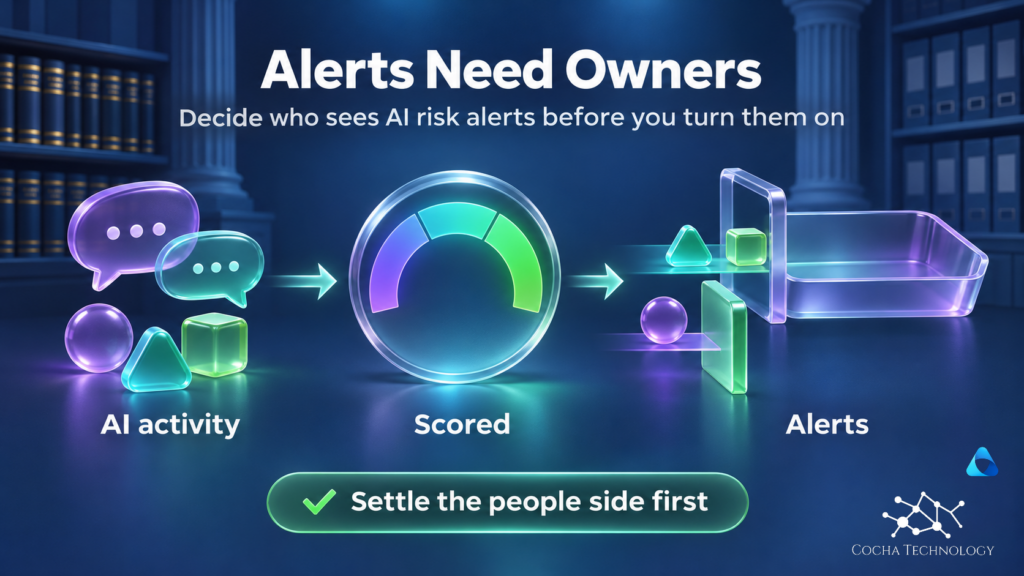
Check 2: Decide who sees alerts before the first alert exists
IRM has privacy controls, and they only help if somebody chooses them on purpose. Learn documents six role groups: Admins, Analysts, Investigators, Auditors and Approvers, plus the all-in-one Insider Risk Management group. The all-in-one group is the fastest way to start. It’s also the one whose row in Microsoft’s permissions table shows every action, which a small firm should think about before using it.
Pseudonymization is on by default for the analyst and investigator roles, so an alert shows something like ANON2340 instead of a name. A separate privacy setting controls whether usernames display across alerts and cases. One caveat from Learn: if you use the IRM Triage Agent, user names in its prioritized alerts aren’t anonymized when that setting is on.
Three scoping details trip people up:
- Admin units aren’t supported for agent alerts. A scoped analyst can’t see them at all.
- Restricted administrators can’t see alerts for users who reached an admin unit through a security group or distribution group. Microsoft recommends adding users to the admin unit directly.
- When guest users interact with agents, analysts don’t get the full prompt and response text. They see only indicators of the sensitive information detected.
Learn’s planning page says some regional or policy requirements may call for restricting certain stakeholders from investigations and cases. If your firm already runs ethical walls, read how Information Barriers behave with Copilot before you decide who may investigate whom.
Check 3: Pick the AI templates, and date-stamp what's preview
As of November 15, 2026, Learn shows two AI-related templates.
Risky AI usage detects user browsing to generative AI sites and sensitive information in prompts and responses in Microsoft 365 Copilot, Microsoft Copilot and agents. Its activity also feeds Adaptive Protection risk scoring.
Risky Agents (preview) detects risky prompts sent to an agent, sensitive responses, access to sensitive or priority SharePoint files, risky websites, sharing of SharePoint files outside the organization, and activity above the agent’s baseline. The templates page names Copilot Studio and Microsoft Foundry agents. Preview means the behavior and the limits can change, so don’t describe it to clients as generally available.
There’s also a shortcut. Data Security Posture Management for AI can create a Risky AI usage policy in one click from its Detect risky interactions in AI apps recommendation. The shortcut is convenient, and it still creates a real policy that scores real people. Our DSPM for AI walkthrough covers what that console sets up. Scope the policy to a pilot group, not everyone.
Check 4: Understand how DLP feeds IRM, and where it doesn't
The Data leaks templates can use a DLP policy to trigger IRM on high severity alerts. The DLP rule’s Incident reports setting has to be High. Learn says IRM alerts aren’t generated from DLP rules set to Low or Medium. Then comes the gap. The High Severity DLP Alert indicator supports alerts from Exchange Online, SharePoint Online and OneDrive for Business. Alerts from DLP policies that apply exclusively to Endpoint DLP, Teams, Microsoft 365 Copilot, on-premises repositories or Power BI won’t trigger the indicator. Microsoft says this is by design. If a policy spans several workloads, only the alerts from the supported ones are processed.
So a firm that builds a careful Copilot DLP policy and expects those matches to surface as insider risk alerts will find they don’t reach IRM through that indicator. We read the Learn pages on November 15, 2026. Confirm the wording on the live page before you tell a partner how the pieces connect.
The Copilot picture comes from the AI templates in Check 3. For what Copilot DLP can and can’t do, see our Purview DLP for Copilot guide.
The connection runs the other way as well. Adaptive Protection takes IRM risk levels and offers them as a condition in DLP policies. Learn says it currently supports Exchange, Teams and devices. That’s a separate design decision with its own approval.
Know which DLP alerts reach Insider Risk Management
A DLP policy that applies only to Copilot won't feed Insider Risk Management through the DLP alert indicator, so map that gap early. The free Snapshot reviews Microsoft 365 permissions and data access, then closes with written findings and a 30-minute review.
Check 5: Agree the people side before you configure anything
The technical steps finish in an afternoon. The harder part is agreeing what the firm does when an alert fires. Learn’s planning page names the stakeholders to involve: information technology, compliance, privacy, security, human resources and legal.
Settle these with HR and counsel before a policy goes live:
- Who’s in scope, and why those people.
- What staff are told, and when.
- Who reviews an alert first, what happens next, and who can escalate to a formal investigation.
- How long alert and case records are kept.
On the legal side, Microsoft’s Get started with Insider Risk Management page says this:
“Customers are solely responsible for using the Insider Risk Management service, and any associated feature or service in compliance with all applicable laws, including laws relating to individual user identification and any remediation actions.”
The same passage says customers must conduct their own full investigation and can’t rely on the service’s insights alone. Whether a given monitoring practice is permitted is a question for your own counsel and HR. This article doesn’t try to answer it.
A first 30 days, in order
- Week one: confirm licensing and auditing, assign role groups and choose the privacy setting. Look for the default Risky Agents policy and name who reviews its alerts. Create no new policies yet.
- Week two: HR and counsel agree scope, staff notice and the escalation path. Write them down.
- Week three: run the analytics scan, or create the Risky AI usage policy for a small pilot group with the browser extension deployed to those devices. Learn advises a small group and anonymization on during the test.
- Week four: review alert volume, tune the thresholds, and decide whether the pilot expands.
Frequently asked questions
Does Microsoft Purview Insider Risk Management work with Microsoft 365 Copilot?
Yes. The Risky AI usage template scores sensitive prompts and responses in Microsoft 365 Copilot, Microsoft Copilot and agents, plus browsing to generative AI sites. It needs a browser extension on user devices and produces alerts for analysts to review. It doesn’t block activity on its own.
Do we need Microsoft 365 E5 for Microsoft Insider Risk Management?
Learn’s licensing places Insider Risk Management in the E5 tier plans, the Purview suites and a dedicated Insider Risk Management license, and each user placed in a policy needs coverage. Read the table in the current Microsoft Purview service description against your licenses, because the list changes and a summary goes stale quickly.
Does Insider Risk Management monitor Copilot Studio agents?
Yes, through the Risky Agents policy, which covers Copilot Studio and Microsoft Foundry agents. As of November 15, 2026, Learn labels it preview. Admin units aren’t supported for agent alerts, so scoped analysts can’t see them, and guest user prompts show only indicators of sensitive information.
Is it legal to monitor employees’ AI use?
We don’t answer that, and the product doesn’t either. Your own counsel and HR should approve scope, notice and escalation before any policy goes live. Microsoft’s documentation says customers are “solely responsible for using the Insider Risk Management service, and any associated feature or service in compliance with all applicable laws.”
How is Insider Risk Management different from DLP?
DLP evaluates content and activity against rules and can warn or block. Insider Risk Management scores a user’s activity over time and raises alerts for review. High severity DLP alerts from Exchange, SharePoint and OneDrive can feed IRM, but Copilot DLP alerts aren’t evaluated by that indicator. See our Purview DLP for Copilot guide.
Where this leaves your firm
If you’re deciding whether Microsoft Purview Insider Risk Management belongs in your Copilot rollout, the free AI Readiness Snapshot is a good first step. It’s a 60-minute working session followed by written findings and a 30-minute review. It’s read-only, makes no changes to your environment and installs no software. The Snapshot reviews Microsoft 365 permissions, data access and the governance around AI tools. It’s a baseline, and it doesn’t configure Insider Risk Management.
Settle the licensing, the alert access, the templates, the DLP gap and the people decisions, and Microsoft Purview Insider Risk Management becomes a control you can explain to staff and partners. If those answers are still open, start with the free AI Readiness Snapshot.
Sources
All pages read November 15, 2026. Each date is the “Last updated” date printed on the page.
- Microsoft Purview service description: Insider Risk Management license table; any user benefiting from the service needs a license. Last updated November 9, 2026.
- Learn about Insider Risk Management policy templates: Risky AI usage and Risky Agents (preview) templates, prerequisites, default application of Risky Agents, one-click policy from DSPM for AI, Data leaks templates and DLP severity. Last updated November 21, 2025.
- Configure policy indicators in Insider Risk Management: Pay-as-you-go notes; High Severity DLP Alert indicator, supported and unsupported workloads, by-design statement. Last updated June 22, 2026.
- Monitoring agents in Insider Risk Management: Risky Agents (preview) policy, default availability, admin unit and guest user notes. Last updated August 4, 2026.
- Assign permissions in Insider Risk Management: Six role groups and the permissions table; restricted administrators and admin units. Last updated September 30, 2025.
- Insider Risk Management and Communication Compliance privacy guide: Pseudonymization on by default for analyst and investigator roles. Last updated August 20, 2025.
- Manage username privacy in Insider Risk Management: Username anonymization setting; Triage Agent exception. Last updated June 26, 2026.
- Get started with Insider Risk Management: Auditing on by default; DLP Incident reports must be High; DLP alert indicator exclusions; the “solely responsible” passage. Last updated November 13, 2026.
- Plan for Insider Risk Management: Stakeholders; regional requirements; pilot with a small group and anonymization on. Last updated August 20, 2025.
- Help dynamically mitigate risks with Adaptive Protection: Adaptive Protection supports Exchange, Teams and devices in DLP policies. Last updated June 26, 2026.
- Considerations for deploying Microsoft Purview DSPM for AI: Detect risky interactions in AI apps recommendation and its Insider Risk Management policy. Last updated May 1, 2026.
- Use Microsoft Purview to manage data security & compliance for Microsoft Copilot Studio: Pay-as-you-go billing for agents published to non-Microsoft channels. Last updated May 1, 2026.