Copilot Studio: 6 controls before staff build their own agents

The paid Microsoft 365 Copilot experience can use organizational data within the user’s access boundaries. Check those boundaries and the policies around the content before expanding access.
April 1, 2026

Copilot Chat Basic comes with a qualifying Microsoft 365 plan. It primarily uses the web, user-provided content and supported app context. Outlook also supports limited related work data. Premium is the paid seat ($30 per user per month, or $21 for organizations under 300 users), and it’s grounded in Microsoft Graph, so it can draw on email, Teams chats, SharePoint and OneDrive. Access and configured data controls limit what can be retrieved.
For a law firm, that’s the part that matters. Premium doesn’t create new access. It makes old oversharing searchable in seconds.
So the license call is a permissions call first. Clear the “Everyone Except External Users” grants and label client matter files before a Premium seat goes live. Conflict-heavy matters may also need information barriers. The rest of this guide walks through each control, in order.
For the broader license comparison, see our Microsoft 365 E3, E5 and E7 licensing guide.
| Comparison | Copilot Chat (Basic) | Microsoft 365 Copilot (Premium) | Copilot Business | Copilot Pro |
|---|---|---|---|---|
| Price per user / month | Included with a qualifying Microsoft 365 plan | $30 (annual) | $21 for organizations up to 300 users (annual) | See Microsoft pricing (consumer / personal plans) |
| Grounding | Web, plus files the user uploads or references | Microsoft Graph and Work IQ (email, Teams, SharePoint, OneDrive) | Microsoft Graph and Work IQ in Microsoft 365 apps | Web and personal Microsoft account content, not firm Graph |
| File access | Content the user provides, supported open-content experiences and separately metered work-data agents. | Relevant organizational content within the user’s access boundaries | Work files the user can open, for eligible Business tenants | Personal OneDrive and consumer app files |
| Admin / data protection | Enterprise Data Protection on qualifying work accounts; limited Graph reach | Controls depend on the required Microsoft 365 and Purview licenses and configuration. | Work controls and Purview where the Business tenant is licensed | Personal Microsoft account protections only |
| Who it fits | Every licensed user, as a safe starting point | Firms that have cleaned up sharing and labels first | Smaller firms (under 300 users) ready for Graph-grounded Copilot | Individuals, not firm matter data |
Prices checked against Microsoft enterprise and Copilot Business pages on Oct 15, 2026. Copilot Pro as a standalone SKU is no longer listed on Microsoft US pricing pages; consumer Copilot now ships inside Microsoft 365 individual plans. See enterprise pricing and business pricing.
Start by checking the user’s assigned licenses in the Microsoft 365 admin center. A Microsoft 365 Copilot license unlocks work-grounded experiences. Copilot Chat without that license is primarily web-grounded, although users can work with content they explicitly provide. Test against the specific experience and licensing configuration rather than relying on a changing app icon or toggle.
Premium does not grant new permissions. It makes existing oversharing much easier to find through natural language. Three risks deserve attention:
This guide compares the work-data access behind Copilot Chat Basic and Microsoft 365 Copilot Premium. Premium can ground answers in authorized organizational content. Basic users can still supply work content through supported paths, so both experiences need data rules.
Start with the permissions behind the workflow. A paid Copilot license doesn’t repair broad sharing, and it doesn’t establish that every Purview feature is licensed. Use the Copilot Chat Basic admin guide for the baseline experience.
“Basic” doesn’t always mean a standalone chat window. Microsoft distinguishes three work experiences: Copilot Chat Basic, Microsoft 365 Copilot Basic and Microsoft 365 Copilot Premium.
Copilot Chat Basic is the baseline experience included with eligible Microsoft 365 subscriptions. Users can provide work content through uploads, supported open-content experiences or a metered agent. In Outlook, Basic can also use inbox, calendar, meetings and limited related work content. It isn’t limited to public information just because there’s no paid Copilot seat.
Microsoft 365 Copilot Basic describes standard access in supported Microsoft 365 apps without the Copilot add-on. Availability depends on licensing and tenant configuration. Premium adds priority access and can ground answers in organizational content through Microsoft Graph and Work IQ.
That distinction matters when testing a matter boundary. Use approved test documents with known permissions. Check which account is signed in, which license is assigned and how the content reached the conversation.
An authorized result doesn’t prove the underlying sharing was appropriate. Microsoft says Copilot surfaces organizational data the user has permission to view. Review broad access before expanding the pilot, using the SharePoint oversharing guide.
The core governance risk
M365 Copilot Premium respects existing permissions. It does not create new ones. But that is precisely the problem. Industry assessments consistently find that 60–80% of enterprise SharePoint sites have at least one oversharing vulnerability. In a law firm context, that means M365 Copilot Premium could surface Client A’s documents in a response while an attorney is working on Client B’s matter, not because Copilot is insecure, but because the permissions were configured before AI could search across everything simultaneously.
When a licensed user submits a prompt in M365 Copilot Premium, the request is sent to the Microsoft Graph: the API layer that indexes the user’s Microsoft 365 data including SharePoint files, Exchange email, Teams conversations, OneNote notebooks, and calendar events. The Graph returns results that the licensed user has at least view permission to access. Copilot then synthesizes those results into a response.
Three things are critical to understand about Microsoft Graph data access in this context:
What the Microsoft Graph data access boundary means for your DPA
All processing occurs within the Microsoft 365 service boundary. Prompts and responses are not used to train foundation LLMs. Microsoft acts as a data processor under your commercial agreement. As of January 7, 2026, Anthropic is a Microsoft sub processor for Copilot, meaning Claude-powered interactions within Copilot operate under the same contractual data protection framework as OpenAI-powered interactions. Your existing Microsoft 365 Data Protection Addendum covers both.
The most important pre-deployment step for any law firm is a comprehensive audit of SharePoint Copilot permissions: specifically identifying sites where content is accessible to more people than it should be. This is not a new governance problem, but M365 Copilot Premium makes its consequences immediate and visible. We track Microsoft’s Copilot governance changes for law firms in a separate post. Our step-by-step guide to finding SharePoint oversharing before Copilot covers Everyone links and broken inheritance. Include permission creep cleanup in the access review before expanding the pilot.
Microsoft provides built-in oversharing visibility through SharePoint Advanced Management (SAM), included with M365 Copilot licenses. Start here:
SharePoint Admin Center → Reports → Data access governance → Sites shared with Everyone or EEEU
Run two specific reports: the Site Permissions for the Organization report (baseline of who has permissions across all sites) and the Sharing Links report (identifies sites with “Anyone” or organization-wide links that bypass membership controls). Export both and sort by permission breadth before you license a single Premium seat.
The “Everyone Except External Users” trap
The single most common oversharing pattern in law firm tenants is sites or document libraries granted to the Everyone Except External Users (EEEU) group. This grants access to every person in the organization. When M365 Copilot Premium traverses the Graph for a licensed user, every EEEU-accessible document becomes part of their AI-accessible corpus, including documents from other practice groups, other client matters, and administrative functions the attorney has no business reading. Identify and remediate every EEEU grant before deploying Premium licenses.
Once overshared sites are identified, three mechanisms are available to restrict SharePoint Copilot permissions without disrupting existing workflows:
SharePoint Admin Center → Active sites → [Site] → Settings → Restricted content discoverability
SharePoint Admin Center → Active sites → [Site] → Settings → Restricted access control
SharePoint Admin Center → Settings → Restricted SharePoint Search
Oversharing accumulates over time because of ownerless sites: SharePoint sites where the original creator has left the firm and no one has maintained permissions since. Before deploying M365 Copilot Premium, run a Site Ownership Policy in SAM to identify any site without at least two active owners:
SharePoint Admin Center → Policies → Site lifecycle management → Site ownership policy → Run in Simulation mode
Run in simulation mode first to identify scope, then switch to active mode to notify ownership candidates. Ownerless sites that have been inactive for 12+ months should be archived or deleted, stale content degrades Copilot response quality as well as creating compliance risk.
Copilot sensitivity labels from Microsoft Purview are the deepest and most precise governance control available for M365 Copilot Premium. They work at the file level, travel with the document regardless of where it is stored, and directly govern whether Copilot can extract content from a document, even for a user who has view permissions.
When a sensitivity label applies encryption via Microsoft Purview Information Protection, Copilot checks two specific usage rights before processing the document: VIEW and EXTRACT. A user must have both VIEW and EXTRACT rights for Copilot to interact with encrypted content. If the EXTRACT right is absent, Copilot cannot read or summarize the document, even if the user can open it manually in Word.
This is the mechanism that gives you matter-level Copilot control through labeling. The built-in permission roles and their Copilot implications are:
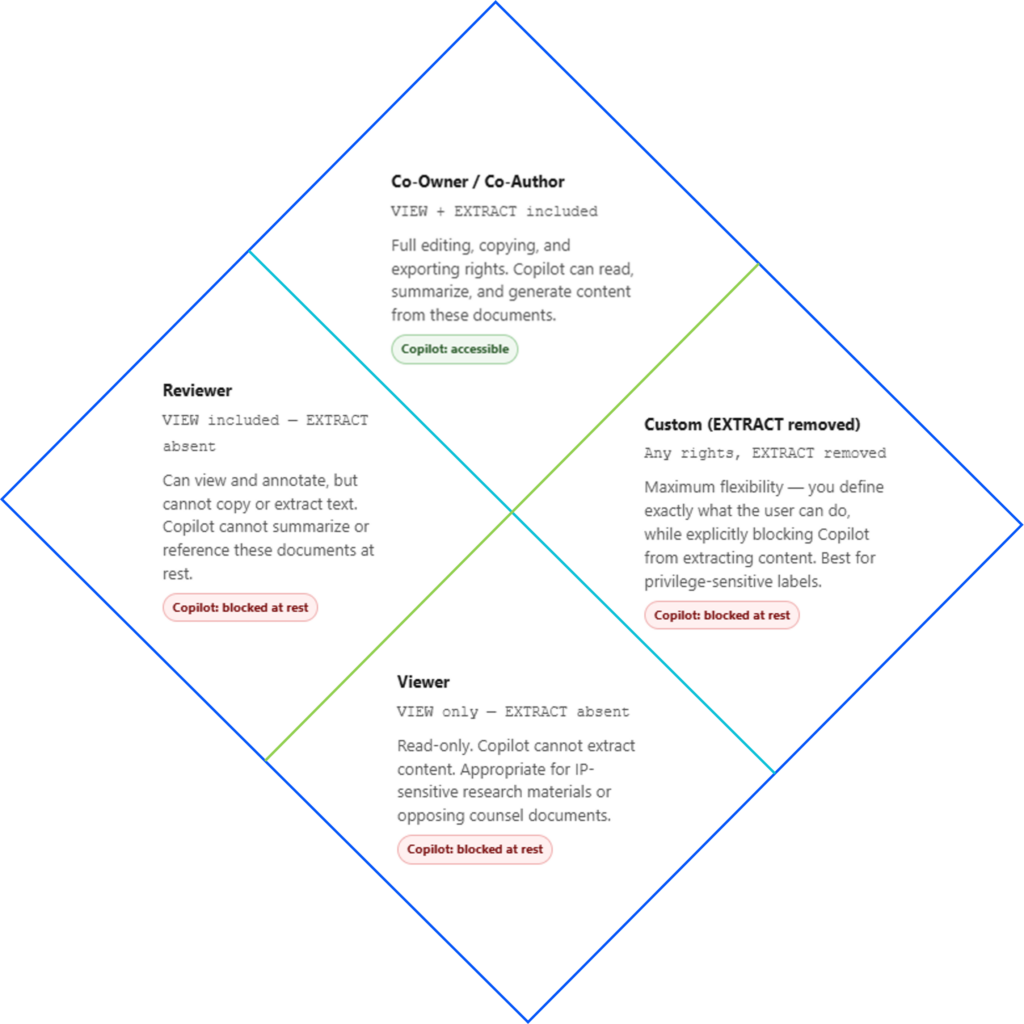
One of the most important behaviors of Copilot sensitivity labels is inheritance. When M365 Copilot Premium generates new content (a Word draft, a PowerPoint presentation, a Copilot Page), it inherits the highest-priority sensitivity label from the source documents used to create it. If an attorney uses Copilot in Word to draft a letter based on a file labeled “Client Confidential,” the resulting draft document is automatically labeled “Client Confidential” with all of that label’s protection settings applied.
Two configuration steps are required for inheritance to work correctly:
Microsoft Purview portal → Information Protection → Sensitivity labels → Turn on sensitivity labels for Office files in SharePoint and OneDrive.
For a law firm deploying M365 Copilot Premium across an established SharePoint environment, manual labeling of existing documents is not viable at scale. Microsoft Purview auto-labeling policies use trainable classifiers and sensitive information types to detect and label content automatically:
Microsoft Purview portal → Information Protection → Auto-labeling policies → Create policy
Law firm-relevant sensitive information types to configure as auto-labeling triggers include: Social Security Numbers, Client Matter Numbers (custom SIT), attorney-client privilege markers, financial account numbers, and any firm-specific document headers or footers that indicate confidential status. Run policies in simulation mode first to assess volume and accuracy before switching to enforcement.
For content encrypted through Microsoft Purview, Microsoft’s guidance requires both VIEW and EXTRACT rights before supported AI apps return the data. It says this protection also extends to content open in Office apps. Do not treat an open document as a general exception to those rights.
Deploying M365 Copilot Premium without configuring Microsoft Purview Copilot audit capabilities is the equivalent of installing email without retention policies. Every prompt an attorney sends, every document Copilot references, and every response generated is subject to your firm’s eDiscovery obligations, legal hold requirements, and bar association data handling rules. Review Copilot DLP controls and limits before choosing the policies for your pilot.
Understanding what each layer captures, and what it does not, prevents gaps in your compliance posture:
| Purview tool | What it captures | What it does not capture | Admin path |
|---|---|---|---|
| Unified Audit Log | Metadata: who used Copilot, which app, when, which files were referenced, sensitivity labels on those files | Actual prompt text or response text: metadata only | Purview portal → Audit Operation: CopilotInteraction |
| eDiscovery (Content Search / Premium) | Full prompt and response text, stored in user mailbox hidden folder alongside Teams chat data | Admin config changes to Copilot settings; device identity information | Purview portal → eDiscovery Search type: Copilot interactions |
| Communication Compliance | Policy-based monitoring of prompt and response content, can flag sensitive data disclosure, inappropriate content, or policy violations | Does not apply DLP-style blocking; detection and review only | Purview portal → Communication compliance |
The Unified Audit Log is the first visibility tool most IT teams will use. Navigate to:
Microsoft Purview portal → Audit → Search tab → Activities – operation names → Enter: CopilotInteraction
Filter by user, date range, and optionally by the app where the interaction occurred (Word, Excel, Teams, etc.). The results show which files were referenced during each interaction and whether those files carried sensitivity labels. This data is your operational baseline for answering the question: “what is Copilot being used for, and what data is it touching?”
The Audit Log records that an interaction occurred but not its content. For full text (prompts and responses), you need eDiscovery. Copilot interactions are stored in a hidden folder in the user’s Exchange mailbox, indexed identically to Teams chat messages. To retrieve them:
Purview portal → eDiscovery → Content Search → Add condition: Type = Copilot interactions
Scope the search to specific user mailboxes and date ranges. For legal hold scenarios, add the user’s mailbox to an eDiscovery hold before the search to preserve interaction data in place. Note that the eDiscovery Premium case is required if you need to permanently delete specific Copilot interactions, for example, in response to a subject access request under GDPR or a court order.
Attorney-client privilege and Copilot prompts
Copilot prompts can reveal attorney mental impressions and case strategy, content that would ordinarily be protected as work product under Federal Rules of Civil Procedure Rule 26(b)(3). Because prompts are stored in the user’s mailbox and are discoverable via eDiscovery, your firm should address this in its AI usage policy: when must attorneys sanitize prompts before submission? How should Copilot-generated draft materials be documented for privilege logs? These are policy questions, not technical ones, but the technical infrastructure for discovery is already active the moment you deploy a Premium license.
For firms deploying M365 Copilot Premium at scale, DSPM for AI in Microsoft Purview provides a consolidated dashboard for AI-specific security posture. It surfaces policy recommendations tailored to your tenant’s current label coverage, identifies risky AI usage patterns, and provides a single view of sensitivity label inheritance across Copilot-generated content:
Microsoft Purview portal → Data Security Posture Management → AI overview
Run the DSPM assessment before your first Premium deployment and revisit it quarterly. It will surface the specific oversharing risks and labeling gaps most relevant to your tenant, more actionable than a generic checklist.
Microsoft Purview Information Barriers restrict supported communication and collaboration in Teams, SharePoint and OneDrive. They do not restrict email communication in Exchange Online.
Treat a matter boundary as a test requirement. Check the policies for the actual workload and users involved. Do not describe Information Barriers as a blanket guarantee across every Copilot data path.
Review Information Barriers and Copilot before treating an access boundary as a complete answer.
Recommended configuration for law firms
Start with IB policies for your highest-conflict-risk matter types: M&A transactions, bankruptcy representations with multiple creditor classes, and government investigations where access to information needs to be demonstrably segmented. Do not attempt to implement IB policies for every matter simultaneously: the initial configuration overhead is significant. A phased approach by matter type, starting with active conflicts, is more sustainable than a comprehensive rollout that stalls before completion.
The controls described in this guide should be implemented in sequence, not all at once. The following phased approach aligns governance readiness with license deployment:
Before expanding a Microsoft 365 assistant, start with the free AI Readiness Snapshot. It uses client-run read-only tooling. No changes to your environment and no software to install.
Copilot Chat Basic is primarily web-grounded, with work content supplied through supported paths. Microsoft 365 Copilot Premium can use organizational data through Microsoft Graph and Work IQ. Neither gives a user permission to open otherwise inaccessible content.
Start with the user’s assigned licenses in the Microsoft 365 admin center. Then confirm the signed-in account and test the relevant app with approved documents. Microsoft distinguishes Basic chat, Basic in-app access and the licensed Premium experience.
No. Copilot uses the user’s existing access boundaries. If a matter site is shared too broadly, the problem already exists. Review group membership and sharing links before using Copilot with that content.
Use a Microsoft Entra work account for the firm’s Copilot Chat and Microsoft 365 Copilot experiences. Microsoft ties Enterprise Data Protection to that sign-in. A personal Microsoft account is a different context; don’t treat it as the firm’s governed work session.
Confirm the account and license, then test access with approved sample documents. Include an allowed case and a denied case. Check the data controls and records settings required for that workflow before expanding the pilot.
A label alone doesn’t exclude content. Encryption rights and configured DLP policies can restrict processing. Information Barriers cover supported collaboration scenarios, not every data path. Microsoft’s guidance says they don’t restrict email communication in Exchange Online. Test the relevant workload.
Copilot uses the access a person already has. That makes a permissions review part of deployment, even when the user already has a paid license.
Do not assume E3 or E5 includes every control described here. Microsoft’s Purview service description separates baseline protections from features requiring E5 or an eligible add-on. Check each requirement against the users and workloads in scope.
Before expanding a Microsoft 365 assistant, start with the free AI Readiness Snapshot. It uses client-run read-only tooling. No changes to your environment and no software to install.
Call or email Cocha. We can help with your cybersecurity needs!