M365 Copilot Premium: Access Control and Data Protection for Law Firms


Copilot Chat Basic: A Law Firm Admin Guide
The free tier is already sitting at your associates’ desks. This is the technical playbook for locking it down the right way before the April 15 tier split arrives.
March 27, 2026
If you read our overview of Microsoft 365 Copilot licensing changes for law firms, you already know that Copilot Chat Basic — the no-additional-cost AI tier included with qualifying Microsoft 365 commercial subscriptions — is changing significantly on April 15, 2026. This post goes one level deeper: the actual admin levers, the Copilot data protection boundary your attorneys are already inside, and the specific policies you need to review before that date.
The most important thing to understand upfront is this: Copilot Chat Basic is not a future consideration. Every user with a qualifying Microsoft 365 or Office 365 commercial subscription — any account backed by a Microsoft Entra ID tenant — already has access to it. Whether or not your firm has officially launched an AI program, the tool is almost certainly already in use. The question is whether you are shaping that use or discovering it after the fact.
What Copilot Chat Basic actually is — and what it is not
The single most persistent misconception among practice group leaders is that the free tier of Copilot is reading every file in the firm. It is not. Copilot Chat Basic is primarily web-grounded: it uses Bing to find publicly available information and GPT-4o to reason over it. It does not connect to your organization’s SharePoint, Exchange corpus, or any internal data repository unless a user explicitly provides content in the chat window. That connection to internal data is the exclusive territory of the paid M365 Copilot (Premium) tier via the Microsoft Graph.
The free tier has gone through several names as Microsoft has iterated on its product structure: it was originally called Copilot with Enterprise Data Protection (EDP), then simply Copilot Chat, and as of the April 15, 2026 rollout it is labeled Copilot Chat (Basic) in product interfaces. Understanding that naming history is useful when reading older vendor documentation.
The three ways Copilot Chat Basic can consume firm data
While it does not index private data automatically, it can consume what a user actively provides. Firm data enters the chat in three ways:
- Manual file uploads. Users can drag and drop a PDF, brief, or contract directly into the chat window. These files are temporarily stored in a hidden folder in the user’s OneDrive for Business — meaning your Copilot DLP policy applies to them exactly as it would to any file uploaded to SharePoint.
- Copy-paste. Any text a user pastes into the prompt becomes part of the AI context. There is no technical guardrail against pasting privileged content; the control here is policy and training, not platform enforcement.
- Outlook integration. Copilot Chat Basic has access to email summarization and calendar grounding in Outlook. This integration continues after April 15 — it is one of the few in-app experiences Microsoft is preserving for unlicensed users.
Copilot data protection — what the EDP boundary means
Because these are commercial accounts with Entra ID, all Copilot Chat Basic interactions benefit from Enterprise Data Protection (EDP). Microsoft acts as a data processor under your organization’s Microsoft 365 commercial agreement. Prompts and uploaded data are not used to train the underlying public models. The data stays within the Microsoft 365 compliance boundary — subject to the same data residency, retention, and eDiscovery controls as the rest of your tenant. This is the same protection framework that governs your email and SharePoint data. See Microsoft Purview’s AI hub for the full compliance documentation.
Copilot access control: gating who gets the tool
Most firms do not want a firm-wide rollout before governance is in place. Copilot access control in Microsoft 365 operates at two levels: the tenant and the individual app. Here is how each works.
Tenant-level: Integrated Apps and the Copilot Control System
The primary lever for Copilot access control is the Copilot Control System inside the Microsoft 365 Admin Center. Navigate to:
Microsoft 365 Admin Center → Settings → Search & intelligence → Copilot
From here, the “Copilot app” entry controls the web experience and the standalone desktop app. To restrict access to a specific group — a Technology Committee pilot, a particular practice group, or a subset of IT staff — go to:
Microsoft 365 Admin Center → Settings → Integrated Apps → Copilot
Change the deployment status from “Everyone” to specific Azure AD security groups. Users outside those groups will not see the Copilot icon in the Microsoft 365 web portal or in the sidebars of their apps. This is the cleanest firm-wide access gate available without deploying endpoint policy.
App-level: suppressing Copilot inside specific Office apps
Some firms want the standalone Copilot app available — for general research — but want to prevent it from appearing inside Word or Excel, where a user might inadvertently feed it a sensitive draft or a client document. Two mechanisms handle this:
- Microsoft Intune policy (via the Intune Admin Center) — the preferred mechanism for organizations that already manage endpoints with Intune. Deploy a configuration profile that disables Connected Experiences for specific Office apps.
- Microsoft 365 Apps Cloud Policy service (config.office.com) — a cloud-based Group Policy equivalent. Create a policy that targets an Azure AD group and disables the “Allow Office to connect to online services” Connected Experiences setting for the apps you want to suppress.
Since Copilot relies on Connected Experiences to function within Office apps, disabling this setting for a specific app removes the Copilot sidebar from that app while leaving everything else intact. The user can still open the standalone Copilot app in a browser.
Post-April 15 note
After April 15, 2026, Copilot Chat Basic users will no longer have in-app sidebar access in Word, Excel, PowerPoint, or OneNote regardless of your Connected Experiences settings. The app-level suppression controls described above become primarily relevant for licensed M365 Copilot (Premium) users whose in-app integration you want to restrict on specific machines or for specific groups.
Teams: controlling the Copilot app pin
In Microsoft Teams, the presence of the Copilot app is governed by Teams App Setup Policies. The standard approach for a controlled rollout is:
- Create a global policy that unpins the Copilot app for all users
- Create a second policy that pins it for your pilot security group
- Assign the pilot policy to the group via the Teams Admin Center
This gives you a clean on/off switch per group without touching Intune or Cloud Policy.
Copilot web search policy: the most consequential dial in the admin center
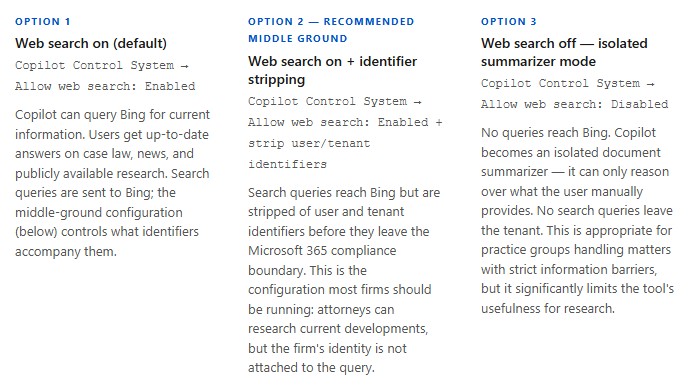
Because Copilot Chat Basic is grounded in the web, the Copilot web search policy is the single most impactful setting available to most firms. It controls whether the tool can query Bing at all, and what identifiers accompany those queries.
The setting lives in the Copilot Control System under the “Allow web search in Copilot“ policy. Here are the three configurations and their practical implications for a law firm:
Practical recommendation
For most law firms, the right Copilot web search policy is Option 2: web search enabled with identifier stripping. It preserves the research value of the tool while ensuring that Bing cannot correlate search behavior back to your firm or a specific attorney. If you have practice groups that require stricter isolation — international arbitration, M&A, or regulatory investigations — consider creating a separate Azure AD group for those users and applying Option 3 to that group specifically via a scoped policy.
Copilot DLP policy: how file uploads and OneDrive intersect
One of the highest-risk features in Copilot Chat Basic is the file upload capability. Any user can drag a PDF, a brief, or a contract directly into the chat. The file is then temporarily stored in a hidden folder within the user’s OneDrive for Business before being processed by the model.
This is where your Copilot DLP policy matters — and where many firms have a gap. Because the upload path flows through OneDrive for Business, any Microsoft Purview DLP policy that is configured to scan OneDrive will evaluate those files automatically. The Copilot chat interface is not a separate channel that bypasses your existing DLP rules — it is another OneDrive upload trigger.
What to check in your DLP configuration
- Social Security Numbers and other PII classifiers. If a DLP policy is already configured to detect SSNs in OneDrive uploads, it will catch those files as they enter the Copilot chat context. Confirm the policy is active and reporting correctly.
- Client Matter Numbers. Most law firm DLP configurations include custom sensitive information types for client matter identifiers. Verify these classifiers are applied to OneDrive as well as SharePoint — the default Purview templates do not always include both automatically.
- Sensitivity Label restrictions. If your firm uses Microsoft Purview Sensitivity Labels, documents labeled “Highly Confidential” can be configured to block AI processing entirely — preventing them from being used as context for any AI tool, including Copilot Chat Basic. This is the most surgical control available for matter-level data segregation.
Gap to close before April 15
After April 15, the standalone Copilot app at m365copilot.com becomes the primary AI surface for unlicensed users — replacing the in-app sidebar. Expect file upload volume to increase as users move their workflows there. If your Copilot DLP policy for OneDrive has not been reviewed in the past 6 months, review it now. The upload path and the compliance enforcement mechanism are identical — but the volume will grow.
Copilot Interaction logs: your visibility layer
The audit infrastructure for Copilot is available today and most firms are not using it. Copilot Interaction logs are available through the standard Audit log search in the Microsoft Purview Compliance portal. Navigate to:
Microsoft Purview Compliance portal → Audit → Search → Activity: Copilot activities
The logs show who is using the tool, which apps they are using it in, and whether they are uploading files. This data is the foundation for a fact-based conversation with practice group leaders about how AI is actually being used in their groups — as opposed to assumptions in either direction.
Where Copilot Chat Basic shows up after April 15: surface-by-surface
The table below is designed to be shared with practice group leaders and your help desk team. It covers the post-April 15 state of Copilot Chat Basic across every Microsoft 365 surface a law firm attorney is likely to encounter.
| App / Surface | Copilot Chat Basic (no paid license) | M365 Copilot Premium (paid license) | Admin control |
|---|---|---|---|
| Word | ✗ Removed Apr 15 Sidebar access ends; users redirected to standalone app | ✓ Full integration Write, summarize, format in-document | Intune / Cloud Policy (Connected Experiences) |
| Excel | ✗ Removed Apr 15 | ✓ Full integration Formula help, data analysis | Intune / Cloud Policy |
| PowerPoint | ✗ Removed Apr 15 | ✓ Full integration | Intune / Cloud Policy |
| OneNote | ✗ Removed Apr 15 | ✓ Full integration | Intune / Cloud Policy |
| Outlook | ✓ Retained Email summarization & calendar grounding confirmed | ✓ Full integration | Copilot Control System |
| Teams | ○ Configurable App available; pinning controlled by admin | ✓ Full integration | Teams App Setup Policies |
| Standalone Copilot app (m365copilot.com) | ✓ Available Web + file upload; primary surface post-Apr 15 | ✓ Available | Integrated Apps (Admin Center) |
| Microsoft Edge sidebar | ○ Available Web-grounded; same EDP protections | ✓ Available | Edge management policies |
Final technical considerations: shape the habit before it shapes itself
The free version of Copilot should not be ignored simply because your firm has not purchased paid licenses. The tool is already in use. The governance question is not whether attorneys are using AI — it is whether they are using it within a managed boundary or outside one.
By taking control of the Copilot access control settings in Integrated Apps and configuring the right Copilot web search policy for each practice group, a firm can shape the AI habit before it becomes a shadow IT problem. A group-based rollout, a reviewed Copilot DLP policy that covers OneDrive uploads, and clear communication about the difference between web-grounded and work-grounded data are the best first steps — and all three are available today without any additional licensing.
Don’t let unmanaged AI become your next shadow IT headache. Cocha Technology is ready to help you deploy these foundational security layers today, ensuring your firm stays audit-ready and ‘Fortress Protected’—contact our team to get started.
Recent Posts
Have Any Question?
Call or email Cocha. We can help with your cybersecurity needs!
- (281) 607-0616
- [email protected]